Strong signal throughout the entire area
A single Wi-Fi network throughout the whole house. Seamless roaming between access points without disconnects.
Easy installation and management
UniFi app or web interface. Guest setup, parental controls and traffic statistics.
Cable-free mesh
Add another access point into a socket or via PoE. Extend the network without pulling cables.
Which UniFi type should you choose?
Ceiling access points
Ideal for flats and offices. The most advanced traffic control and best coverage.
- Placement
- Ceiling / wall, indoors
- Power
- PoE (recommended)
- Suitable for
- Full-area coverage, more devices
Wall access point (In-Wall)
Elegant solution for flats, offices and hotels. Replaces an Ethernet socket and adds Wi-Fi plus ports for other devices.
- Placement
- Wall, indoors (into an installation box)
- Power
- PoE
- Suitable for
- Hotel rooms, rooms/flats without ceiling mounting
- Features
- Built-in switch for connecting additional devices
Plug-in extenders
Quickly extend coverage without cabling. Just plug it into a socket where the signal is weak.
- Placement
- 230 V socket
- Power
- AC (no PoE)
- Suitable for
- Fast coverage without drilling
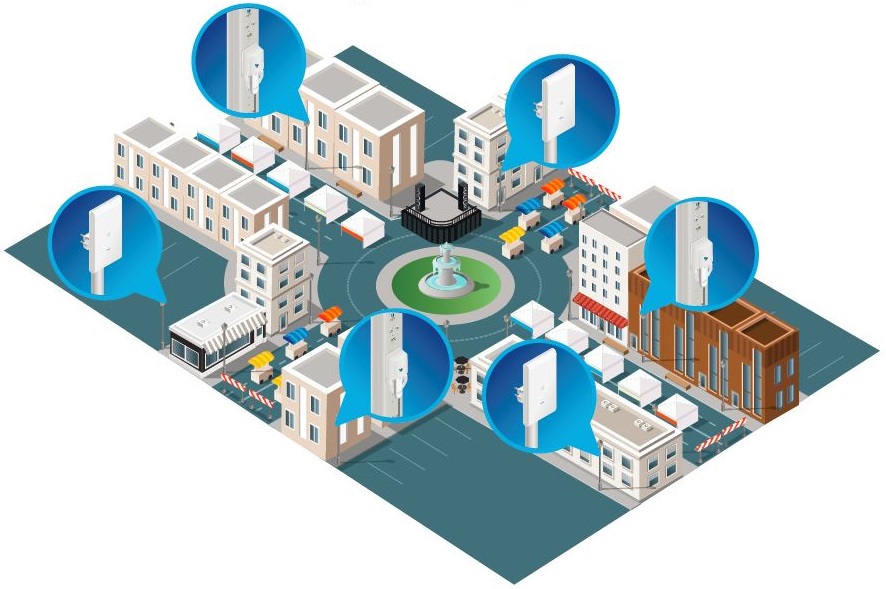
Outdoor access points
Weather-resistant. Suitable for gardens, yards, terraces or linking buildings.
- Placement
- Pole / wall, outdoors
- Power
- PoE / AC depending on model
- Suitable for
- Gardens, yards, shelters
Wireless bridge (bridging)
Connect two locations without a cable. Suitable where there is line-of-sight.
- Placement
- Outdoor / indoor
- Power
- PoE
- Suitable for
- Linking buildings, garage, workshop
UniFi console / gateway (optional)
Simplifies configuration, offers VPN, security features and detailed statistics. Recommended for mesh and roaming.
- Function
- Central management, VPN, statistics, PBR
- Recommendation
- Recommended for 2 or more UniFi APs (better roaming and management)
- Alternative
- Adoption via mobile / Site Manager
- Interconnect remote console
- Monthly service: no on-site HW installation, remote management, diagnostics and backups – suitable for homes and businesses
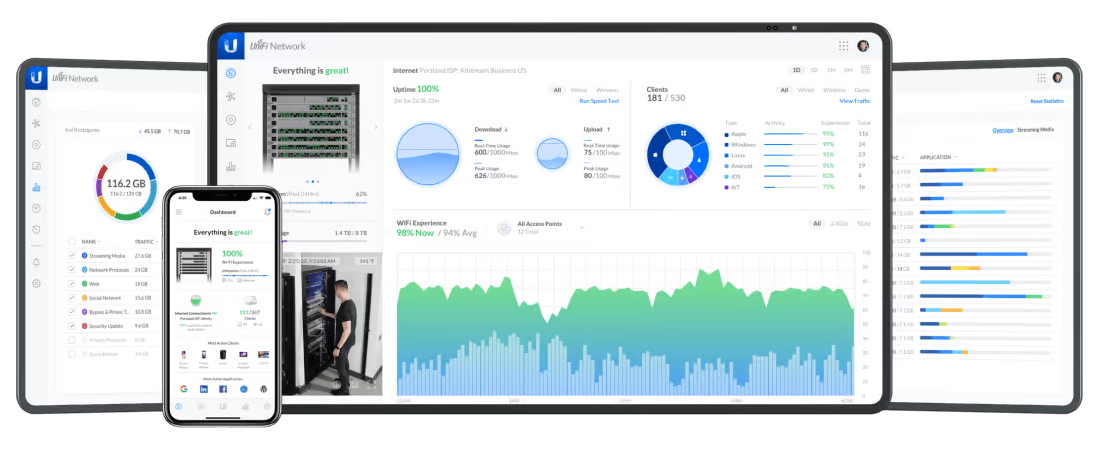
UniFi Network
Unified management and real-time monitoring – network load, client list, speed, Wi-Fi Experience and alerts. Works on mobile and desktop.
Quick comparison of types
| Type | Placement | Power | Bands | Mesh | Typical use |
|---|---|---|---|---|---|
| Ceiling AP / In-Wall | Indoor | PoE | 2.4 / 5 / (6) GHz depending on model | Yes (with UniFi console) | Full-area coverage, more devices In-Wall also adds ports for devices |
| Plug-in extender | Indoor | AC 230 V | 2.4 / 5 GHz | Yes (with UniFi console) | Fast signal extension |
| Outdoor AP | Outdoor | PoE / AC | 2.4 / 5 / (6) GHz depending on model | Yes (with UniFi console) | Gardens, yards, terraces |
| Wireless bridge | Outdoor / indoor | PoE | 5 / 60 GHz depending on model | Point-to-Point | Connecting two locations without a cable |
How deployment works
1. Short consultation
Basic requirements, layout and weak-signal spots.
2. Design and placement of access points
We recommend AP types, power and channels. If needed, we measure interference.
3. Installation and tuning
Mesh setup, performance optimization and network security.
Frequently asked questions
UniFi is a scalable platform where you manage hundreds of APs as easily as one. It offers enterprise-grade performance, elegant form factors and wide applicability in professional environments.
Combined with a UniFi Cloud Gateway you get a full UniFi network: advanced security and traffic analytics, built-in VPN and intuitive policy-based routing (PBR).
- Make sure the UniFi environment is installed and running.
- Power on the UniFi AP and verify connectivity to the UniFi Console.
- Open the UniFi mobile app (iOS/Android) or UniFi Site Manager.
- Once the device appears, click “Adopt”.
Power the AP via a UniFi PoE Switch or an AC power adapter with PoE.
For the smoothest setup we recommend a UniFi Cloud Gateway.
- Enterprise: capacity of 1,000+ clients, top performance in 6 GHz, 10 GbE PoE and high availability for critical workloads.
- Flagship: high-performance ceiling access points for demanding environments.
- Wall (In-Wall): mounts into a wall box, with built-in ports for additional devices.
- Outdoor: rugged, weather-proof APs for outdoor and indoor installations.
- Bridging: high-speed wireless links where you cannot run cabling.
Note: Wireless mesh requires a UniFi Console and is not available in Standalone AP mode.
Most UniFi APs cover roughly 95–185 m² (1,000–2,000 ft²). Given wall attenuation we recommend at least 1 AP per 95 m² for maximum performance and reliability.
Use the free UniFi Design Center: upload floor plans, place devices and verify coverage and cabling requirements.
For further optimization use the WiFiman mobile app (iOS/Android) – it measures speed, latency and maps signal in the real environment.
Most APs require Power-over-Ethernet (PoE) from a UniFi PoE switch or UniFi PoE adapter. Check which PoE mode your model needs before purchase.
Some models (e.g. U6 Extender) can be plugged directly into an AC socket.
Yes. UniFi APs can automatically create a mesh and broadcast a single Wi-Fi, so you stay connected while moving between APs.
APs can mesh wirelessly with each other and eliminate dead spots without extra cabling. Just plug the AP into a PoE adapter within range of another AP.
Note: Mesh isn’t available in Standalone mode (without UniFi).
No. UniFi offers full functionality without hidden fees or licences.
UniFi APs are tuned to balance speed and resilience to interference. If you want to prioritize speed, increase channel width (e.g. 5 GHz from 40 MHz to 80 MHz or 160 MHz in UniFi Network).
Before widening the channel, check interference levels with the WiFiman app (iOS/Android) or the Radio Manager in UniFi Network.